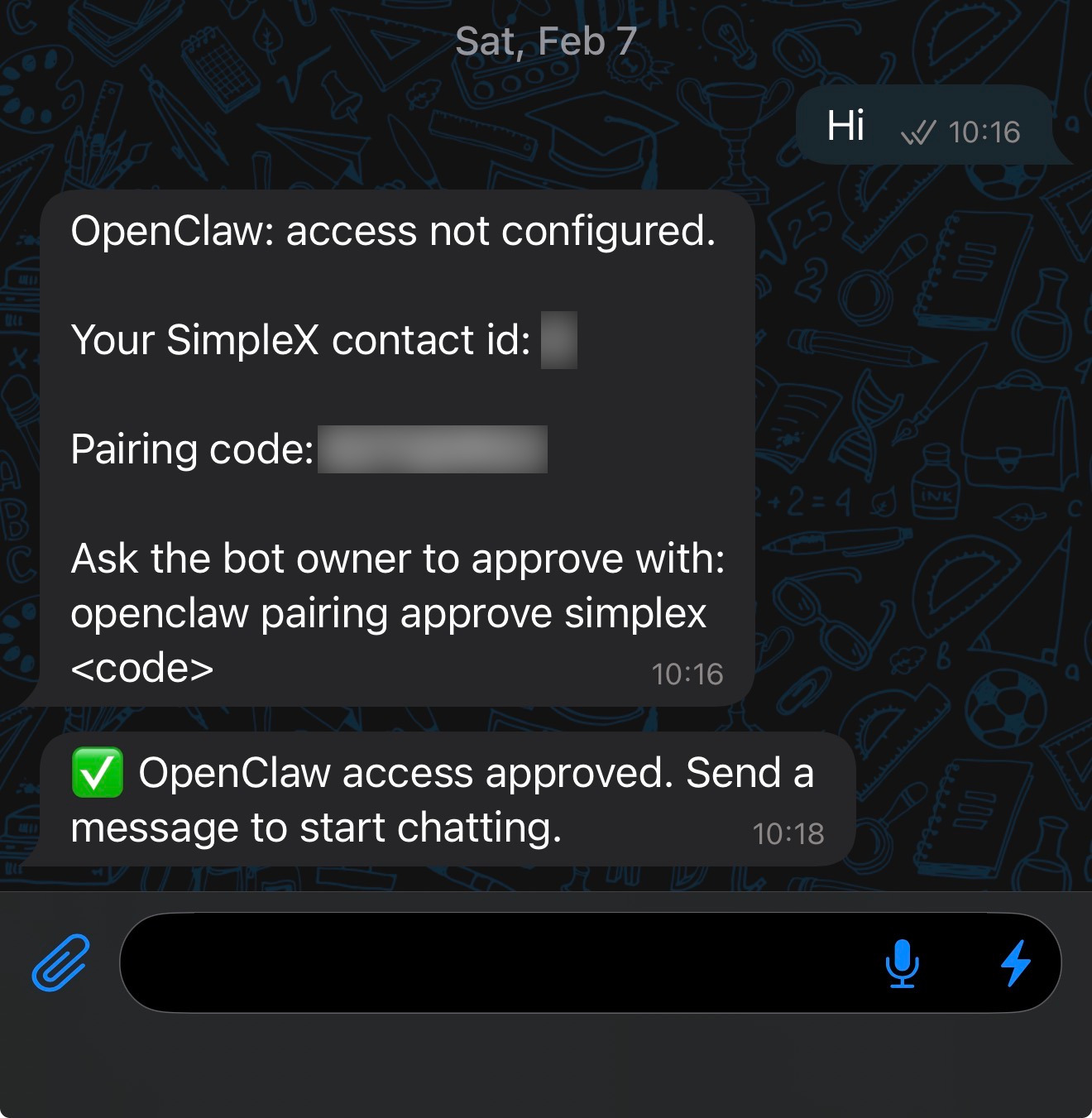
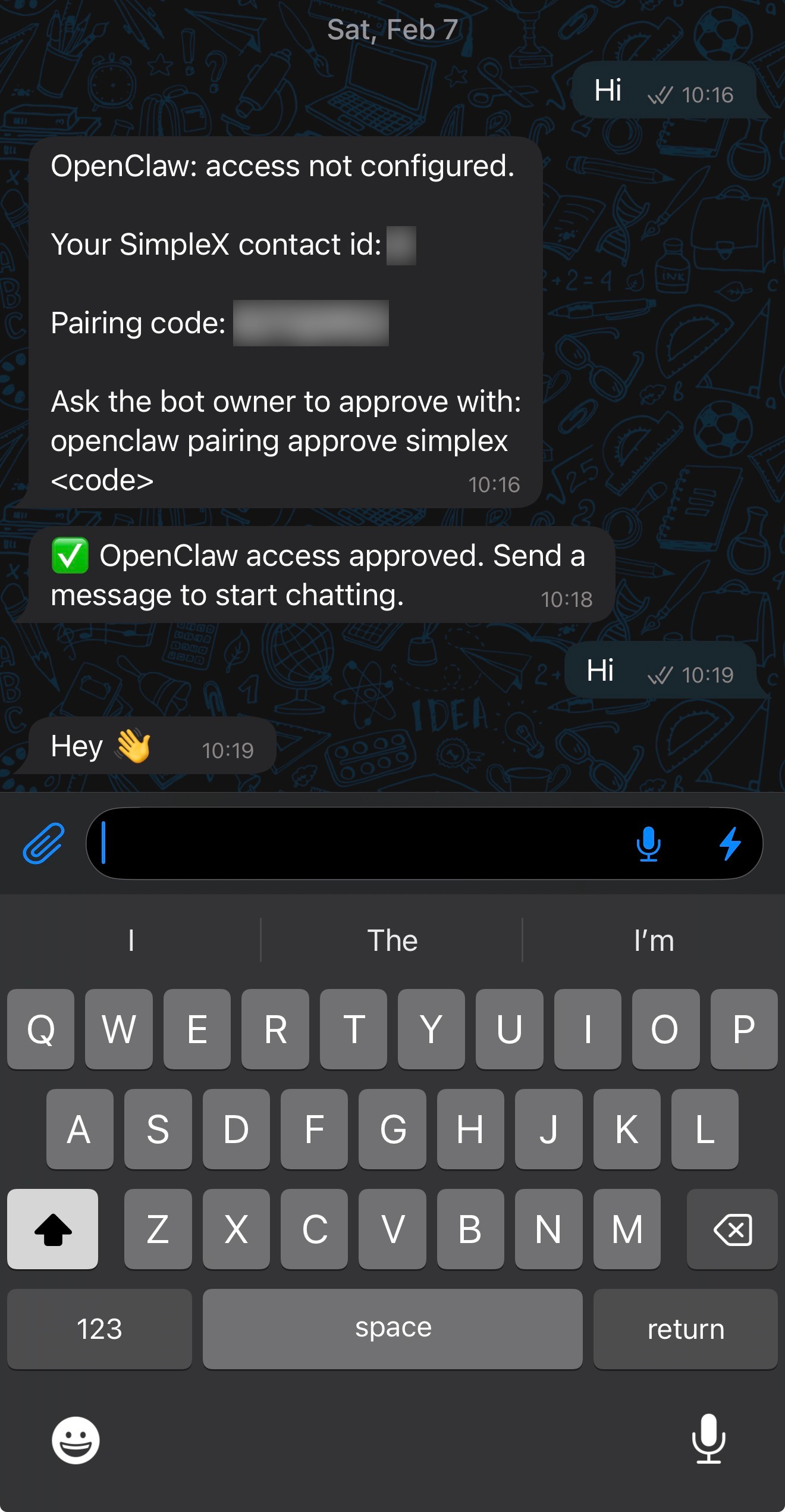
Screenshots
This page shows the SimpleX invite flow in OpenClaw Control UI.
It assumes the SimpleX channel is already configured, for example with a managed channels.simplex.connection setup.
Control UI invite flow
- Open
Control -> Channels -> SimpleX.
Before invite generation:
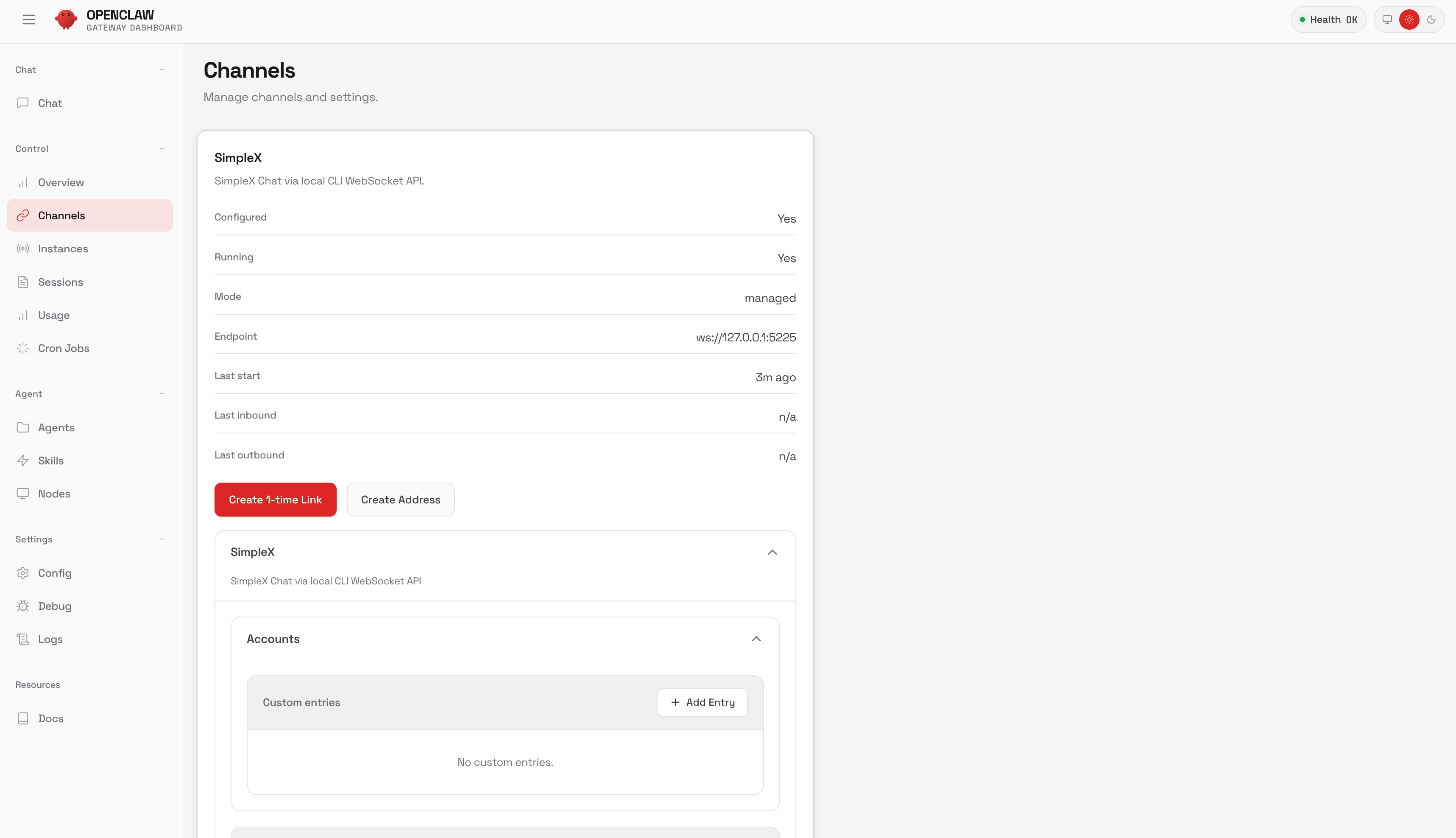
- Click
Create 1-time Link.
After link generation:
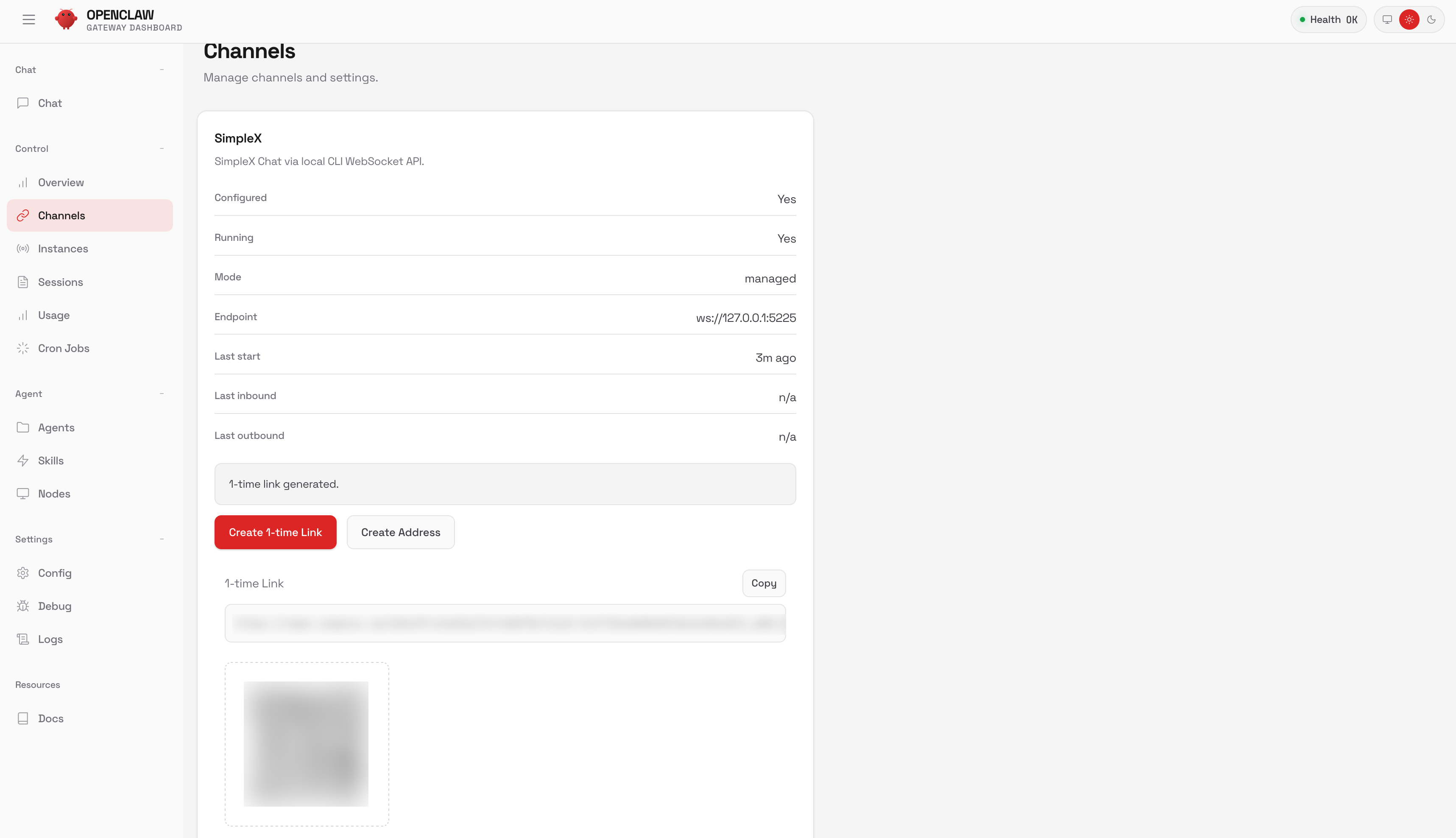
- Send first message from the SimpleX app and capture pairing request:
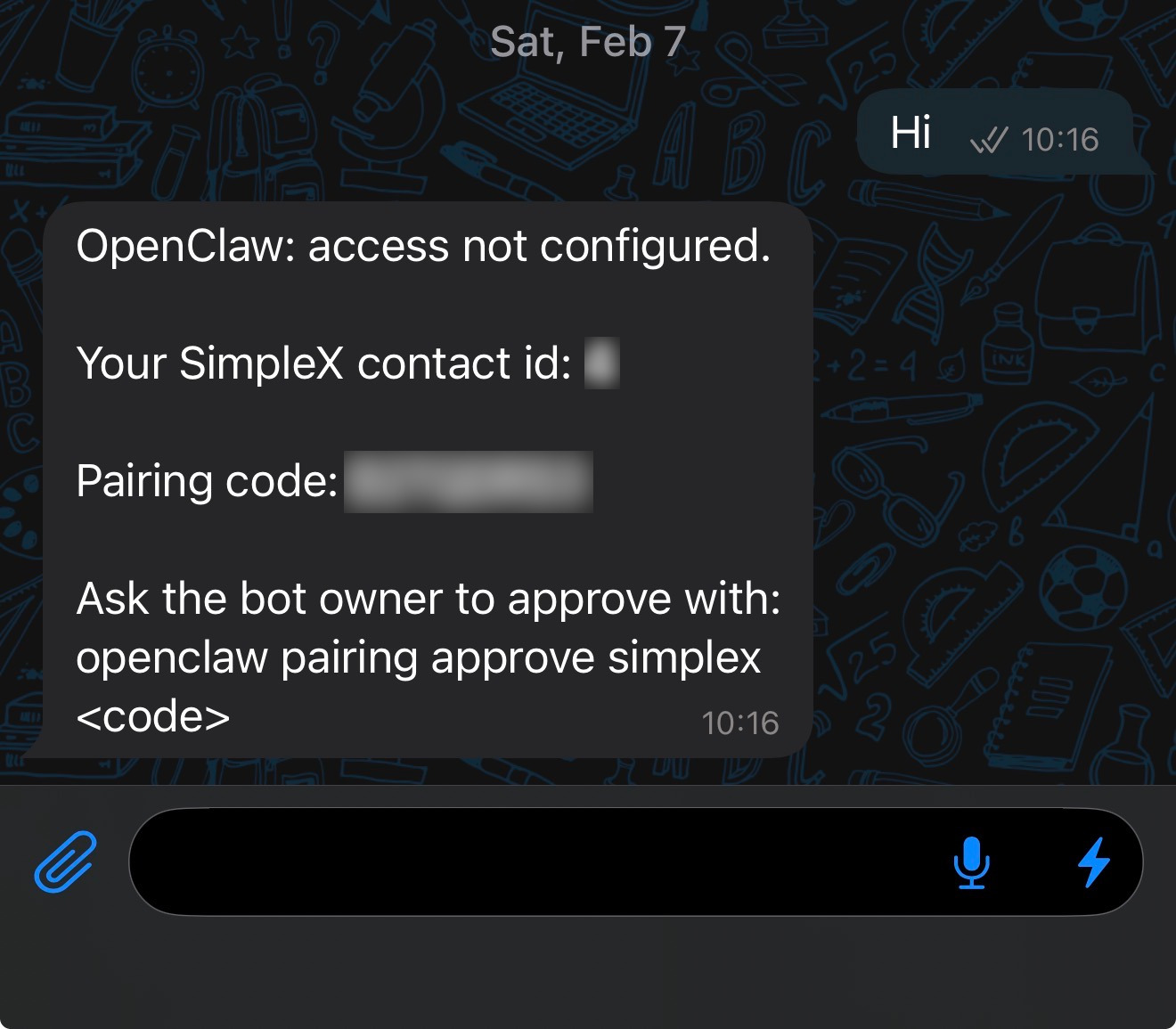
Pairing request table in OpenClaw:

- Approve pairing in OpenClaw:
bash
openclaw pairing listbash
openclaw pairing approve simplex <code>- Confirm approved + first successful chat: